Introduction
This is a quick guide to set up GitHub Actions for Pulumi with an
AWS S3 Backend. There are some differences compared to running pulumi commands locally. This guide assumes you have the following:
- An AWS S3 Bucket created and ready to be used with Pulumi
- An IAM User that has permissions to read/write to the S3 bucket
- The Access Key and Secret Access Key for the IAM User to use for authenticating to AWS within GitHub Actions
- A passphrase of your choosing that will be used to encrypt secrets in the pulumi stack
- A GitHub repository
Setting up Repository Secrets
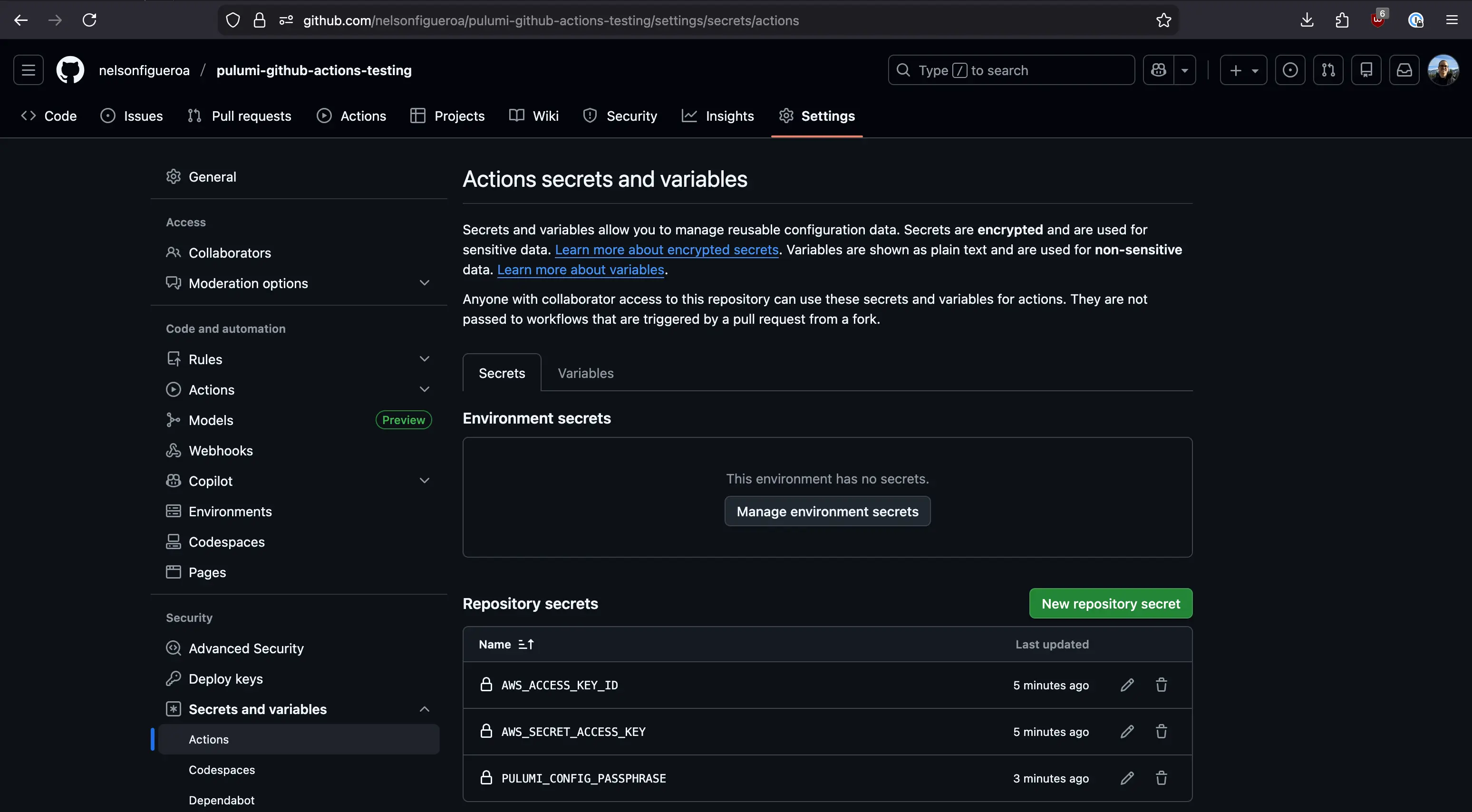
First, set up secrets on your GitHub repository. These will be filled in by GitHub Actions once we create a workflow YAML. You’ll need to create 3 secrets. You can name them whatever you want, but I’ll be naming them:
AWS_ACCESS_KEY_IDAWS_SECRET_ACCESS_KEYPULUMI_CONFIG_PASSPHRASE
You can create these by browsing to your GitHub repository > Settings > Secrets and variables > Actions. There are “Environment secrets” and “Repository secrets”. In this case go with “Repository secrets”.
Create the three secrets and fill in their respective values. PULUMI_CONFIG_PASSPHRASE can be whatever you want and doesn’t come from AWS.
The end result should look like this:
Defining the GitHub Actions Workflow
Next, clone the repository locally with git clone. We’ll need to create a few files for a minimum viable Pulumi program. Run pulumi new and it’ll guide you through the creation of a basic Pulumi program. The language you choose doesn’t matter.
Then we can create the YAML file to set up GitHub Actions. Create a YAML file under <your-repository-name>/.github/workflows/. I’ll call it preview.yml in my example. Fill it in with the following YAML, changing values as needed.
| |
This runs a pulumi preview so it’ll verify that everything is set up correctly without actually deploying anything.
Testing the Workflow
Now push your code to GitHub and see if the GitHub Action workflow ran successfully. You should see output from a successful pulumi preview.
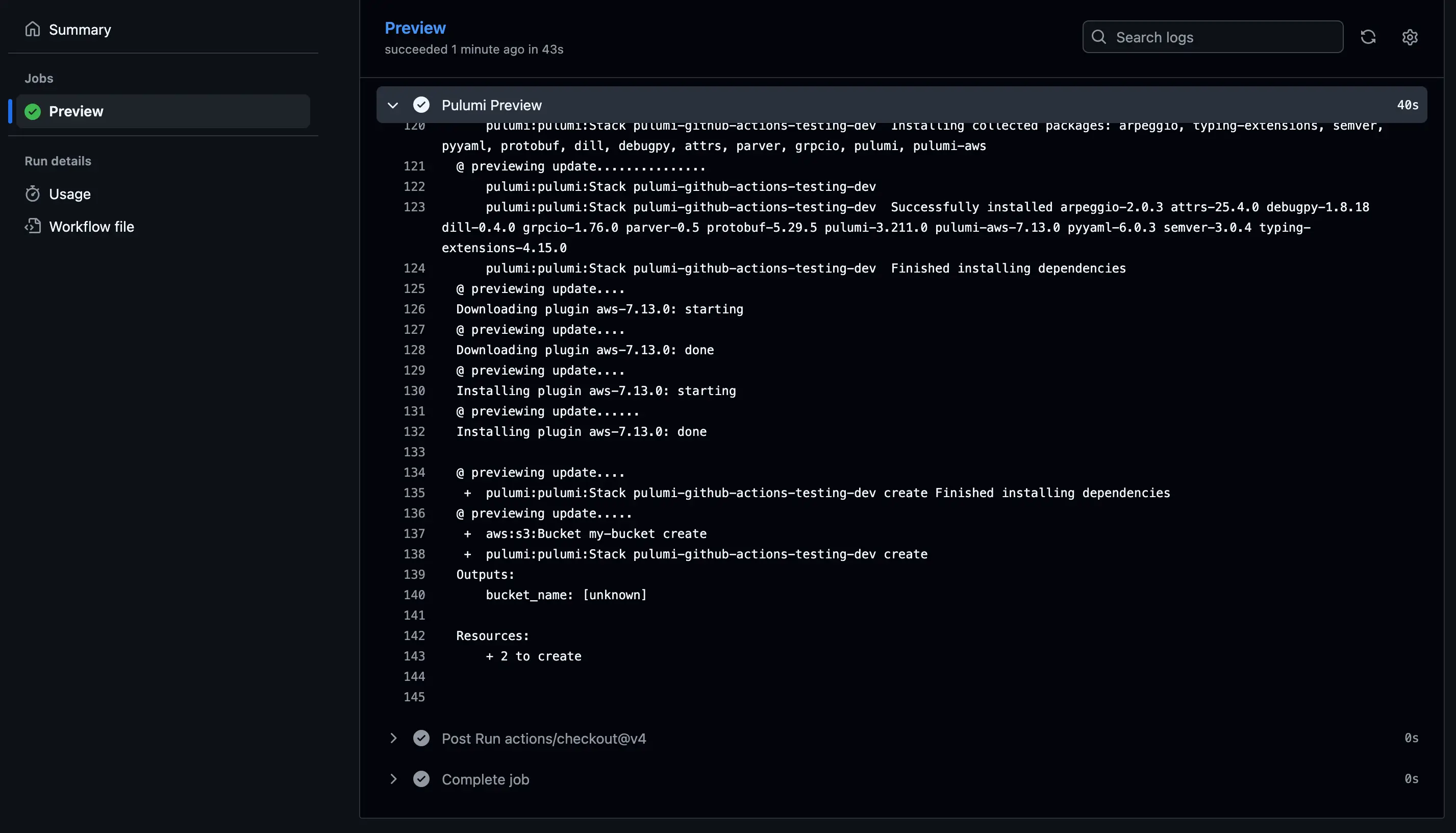
If this works, you should be good to go. You can update your Pulumi code and change command: preview to command: up in the GitHub Actions YAML file and run it again to actually deploy some infrastructure.